Want more flexibility while adding funds?
With Manual Deposit, you can transfer INR directly from your registered bank account and securely submit your deposit proof for verification and processing by our team.
How to make a manual deposit?:
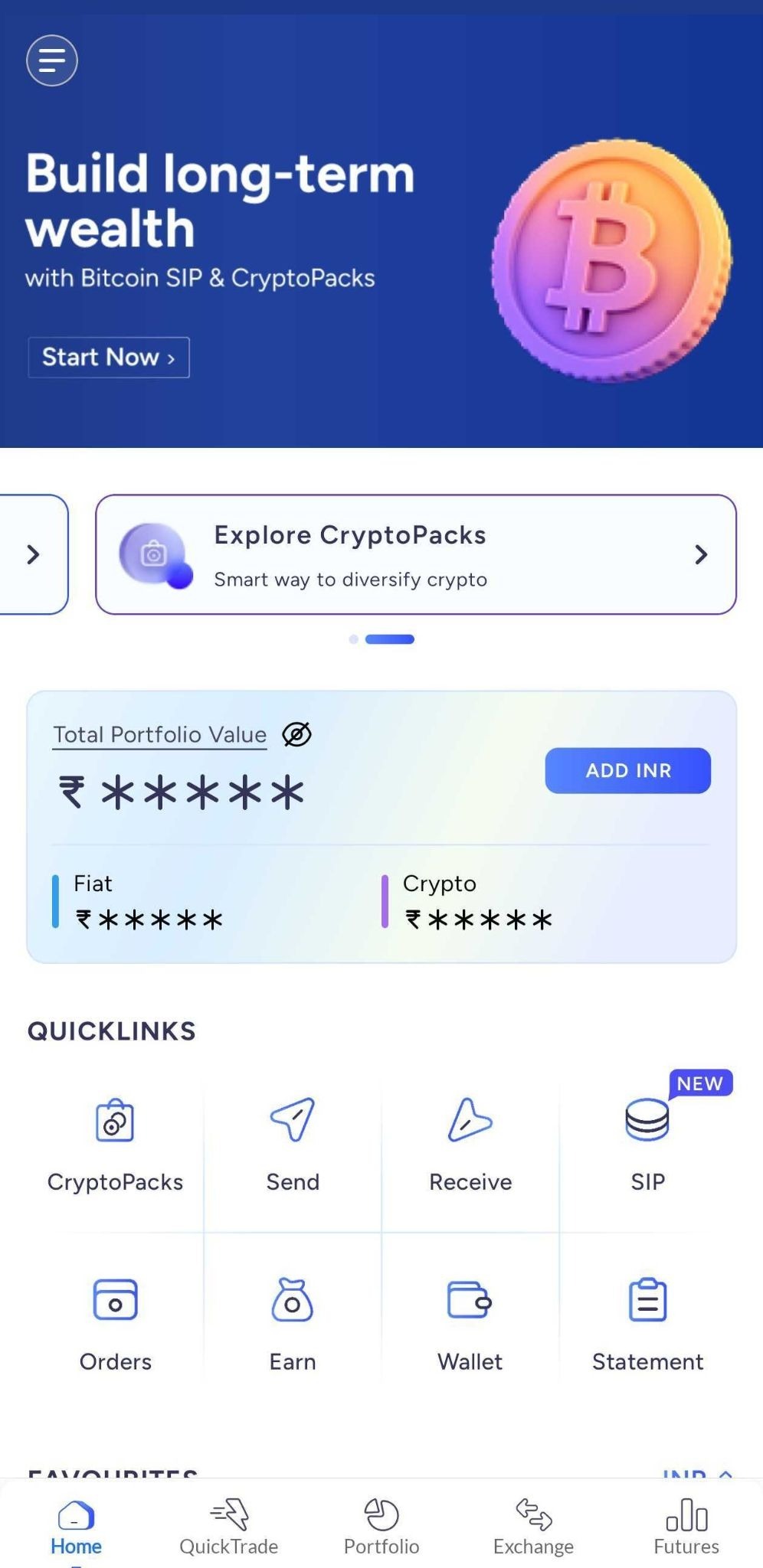
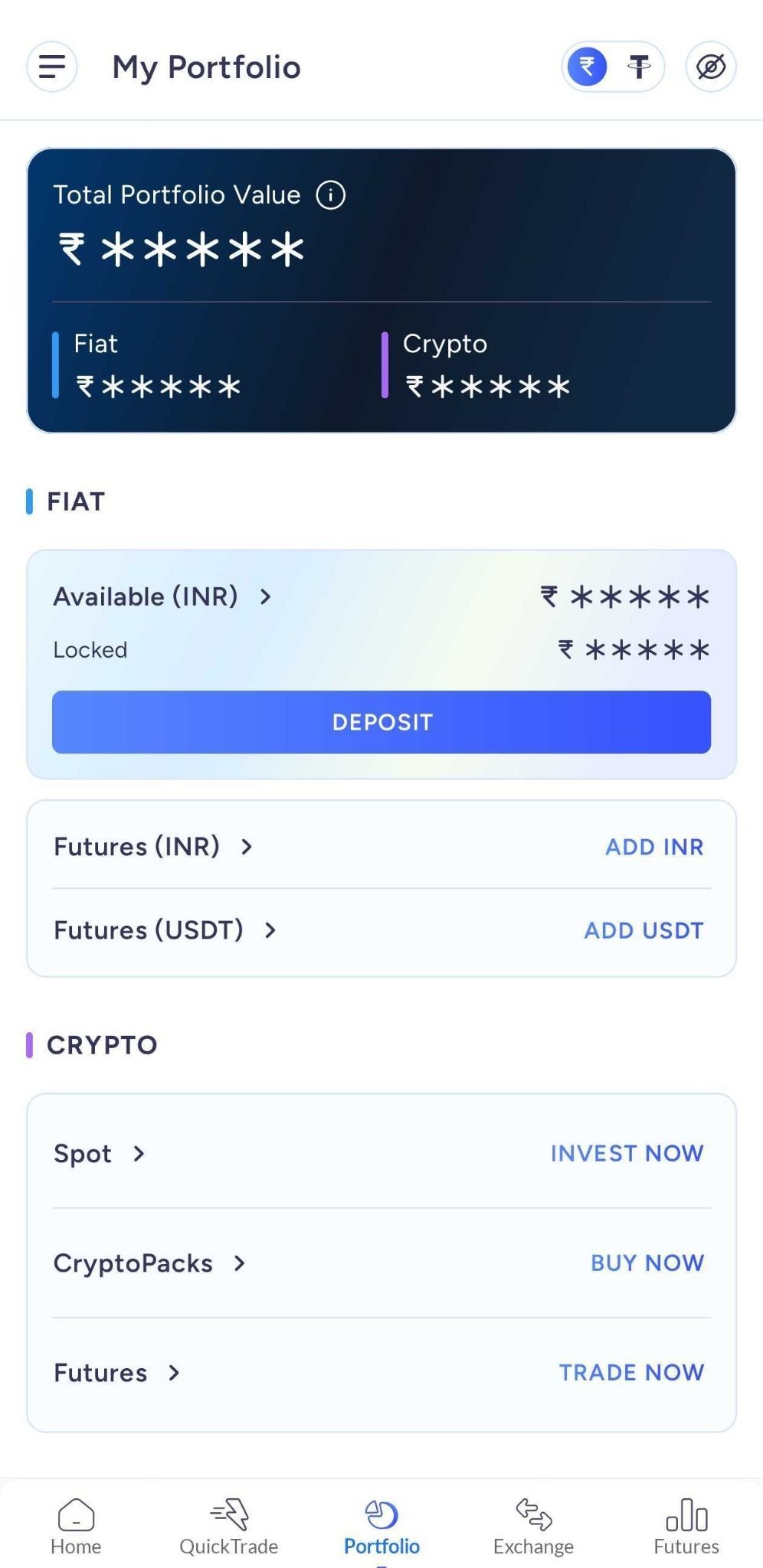
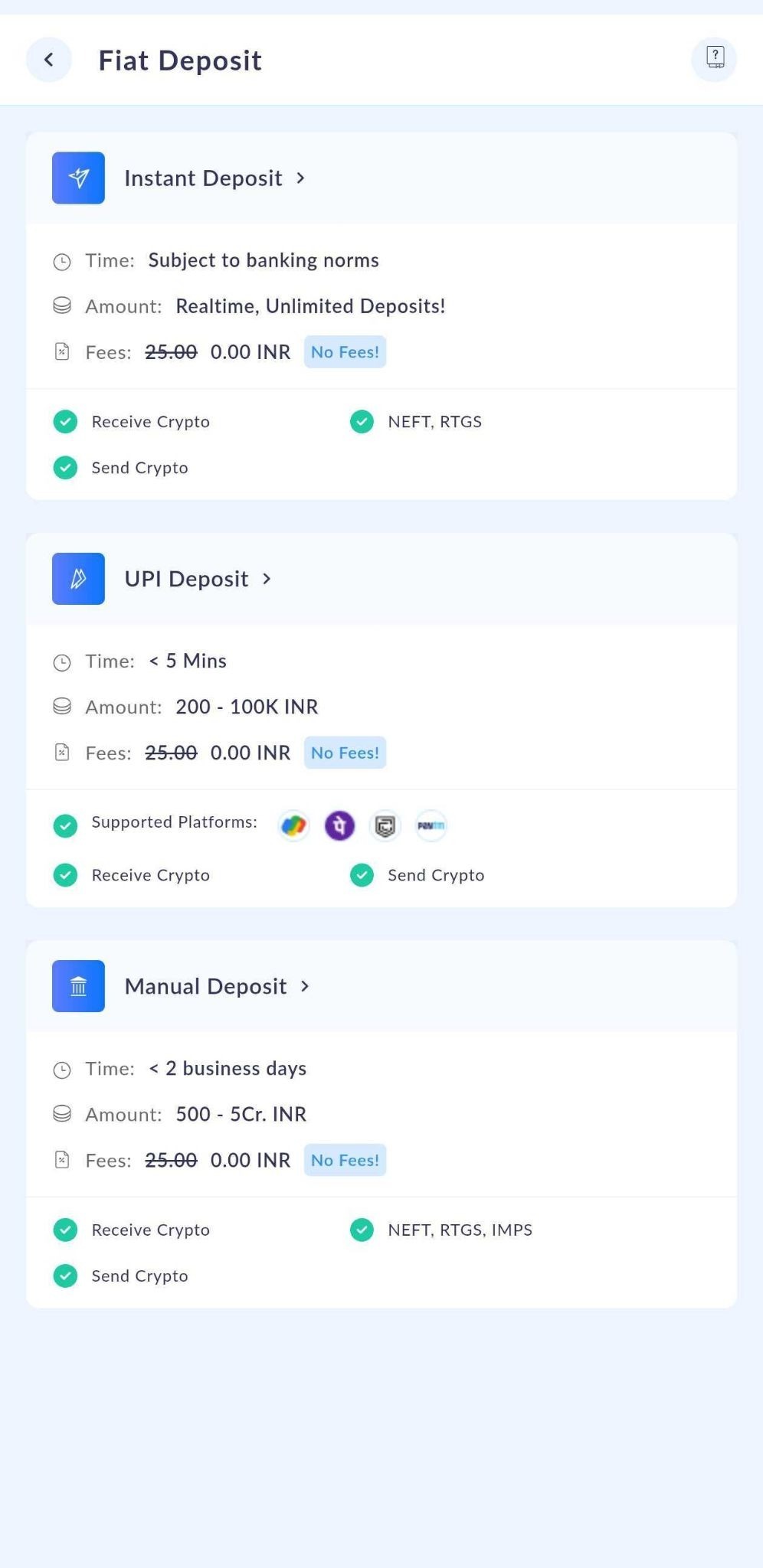
Step 1: On the Portfolio screen, tap Deposit → Manual Deposit
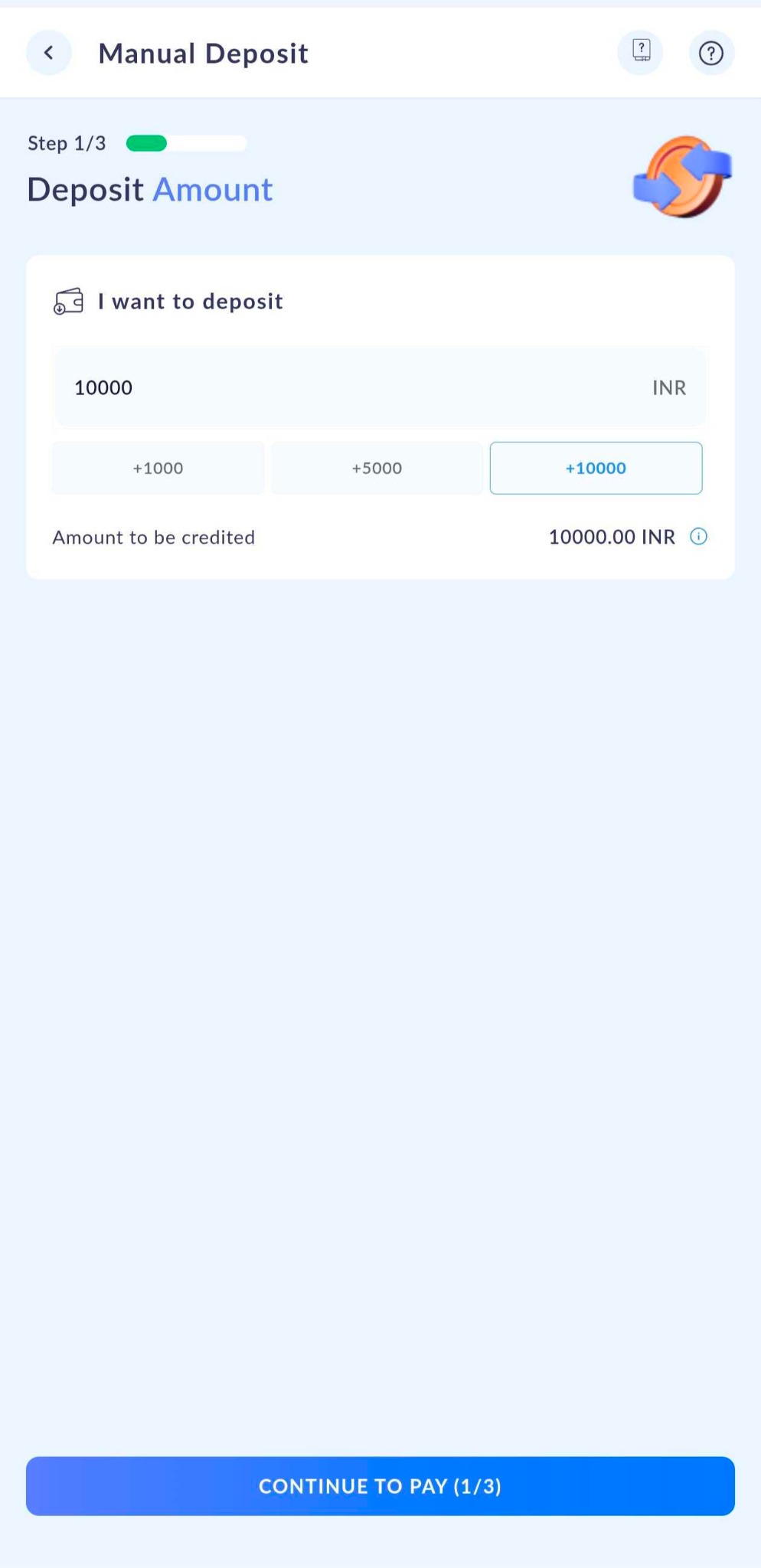
Step 2: Enter the amount you wish to deposit (must meet the minimum amount shown on screen) and tap Continue to Pay
Step 3: You'll see our beneficiary bank details — transfer funds from your registered bank account to this account.
Step 4: Once the transfer is done, select your payment method and enter the Transaction Reference Number (UTR/Payment ID) from your receipt or bank statement.
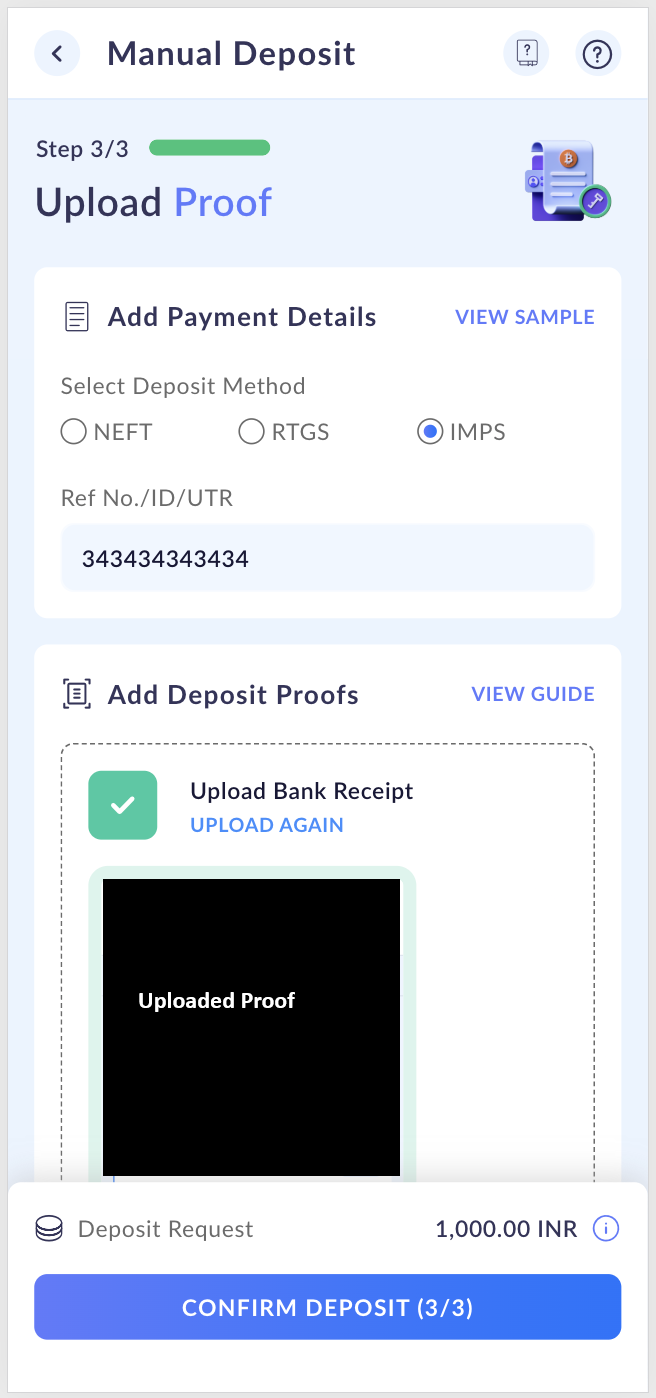
Step 5: Upload a clear image of your transaction receipt or bank statement. Make sure it includes:
Remitting account number
Amount transferred
Transaction date
Complete reference number
Step 6: Review all details carefully, then tap Confirm Deposit — you'll see a summary on the next screen
You can have up to 3 deposit orders in "Processing" status at the same time. A new order can only be created once one of them is processed or rejected.
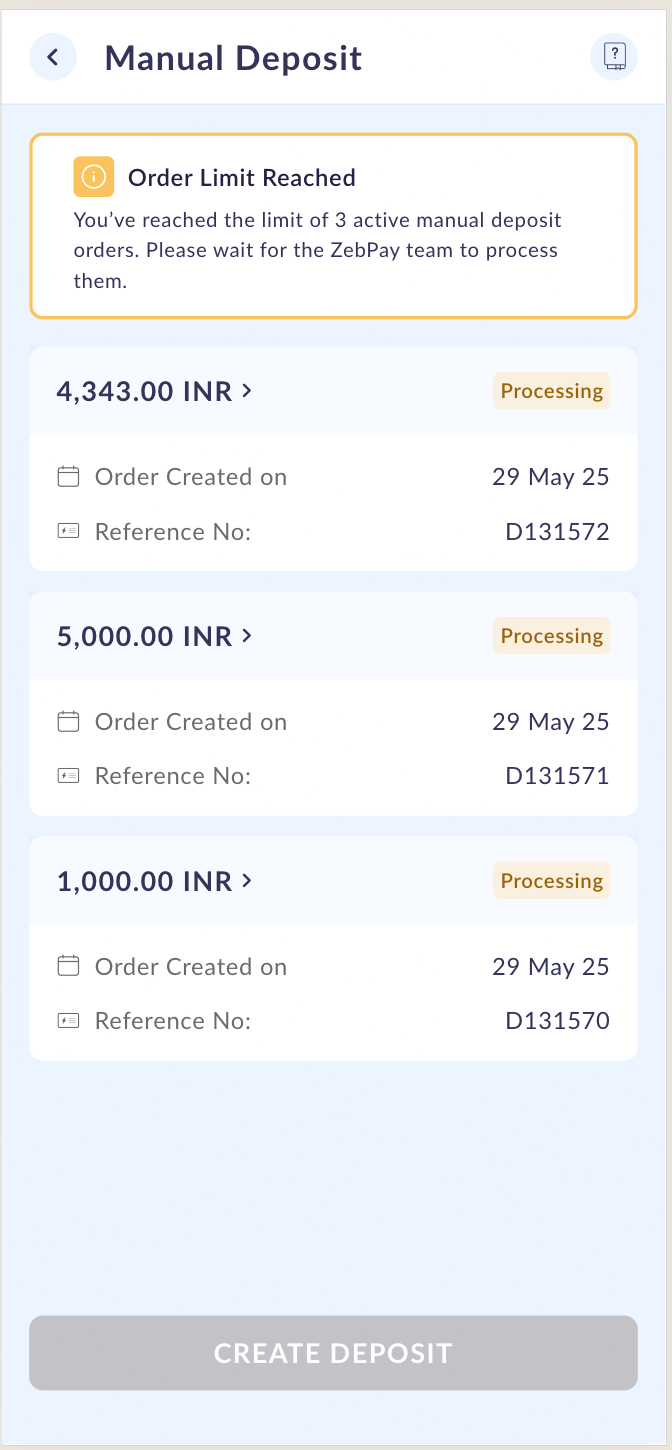
Cancelling a deposit order
Changed your mind? You can cancel a pending deposit anytime — here's how:
Step 1: Go to Portfolio → Deposit → Manual Deposit
Step 2: Select the deposit order you wish to cancel from the list
Step 3: Choose a reason from the dropdown and tap Cancel.
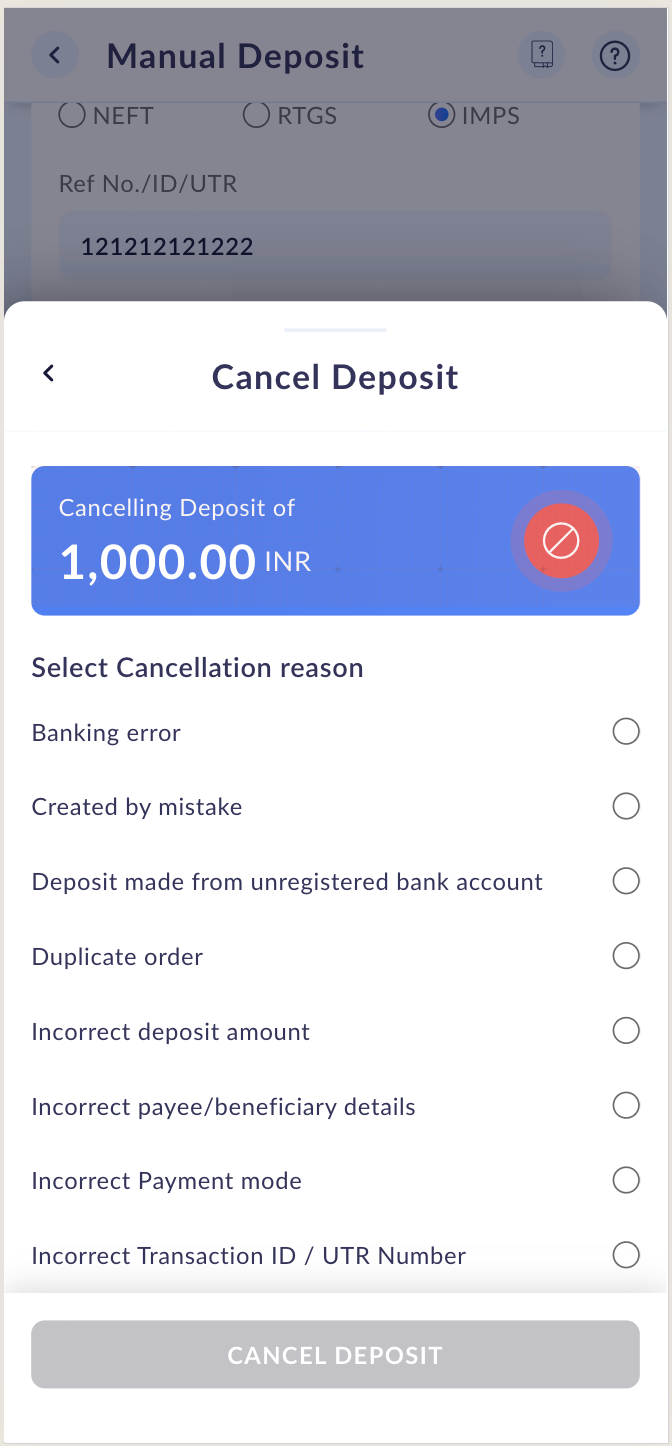
Step 4: Read the notification, tap Acknowledge, then Proceed with Cancellation.
Step 5: Your order will be cancelled and you'll receive a confirmation in the app and via email.
⚠️ Please note: Cancelling a deposit order does not automatically trigger a refund. If you've already made the transfer and need a refund, please reach out to our Customer Care team — we're happy to help!
Deposit orders showing "Action Required"
If your deposit proof is rejected (due to missing details, incorrect documents, or an unreadable file), your deposit order will show the status "Action Required". You'll also receive an email explaining why and what to do next.
Here's how to re-upload your deposit proof:
Step 1: Go to Portfolio → Deposit → Manual Deposit
Step 2: Tap the deposit order marked Action Required
Step 3: Under the Add Deposit Proof section, tap Re-upload Document and upload a valid proof containing all required details
Step 4: Tap Confirm Upload to submit
Once re-uploaded successfully, the status will change back to Processing and our team will review it within 48 hours.
⚠️ You can re-upload proof a maximum of 2 times. If rejected after the second attempt, the deposit order will be automatically cancelled.
Important things to keep in mind!
Please go through these before making any deposit — they'll save you time and keep your funds safe:
✅ Only use your registered bank account — deposits from unregistered accounts will be refunded, with a ₹500 penalty deducted
✅ No third-party transfers — a fine of ₹500 applies to deposits made from accounts not registered with ZebPay
✅ NRE / NRO / NRI / Joint accounts are not accepted — as per statutory guidelines, such deposits may result in loss of funds
✅ Do not use UPI for Manual Deposit — UPI is only supported through the dedicated UPI Deposit option
✅ Fees shown are exclusive of GST — 18% GST will be applied on all applicable fees. Visit our Fees & Limits page for the latest details
Got questions or need a hand? Our support team is always here for you — don't hesitate to reach out via a support ticket!
Was this article helpful?
That’s Great!
Thank you for your feedback
Sorry! We couldn't be helpful
Thank you for your feedback
Feedback sent
We appreciate your effort and will try to fix the article